SAP-IBP Connector
Note
SC Navigator connects with SAP-IBP via the OData services, using “/IBP/PLANNING_DATA_API_SRV” and “/IBP/MASTER_DATA_API_SRV”. SAP-IBP currently only supports this for the “Unified Planning Area” (I_SAPIBP1), and not for the “Harmonized Planning Area” (I_SAPIBP2). This is expected in the future, but there is no clarity on the timeline for this development by SAP-IBP.
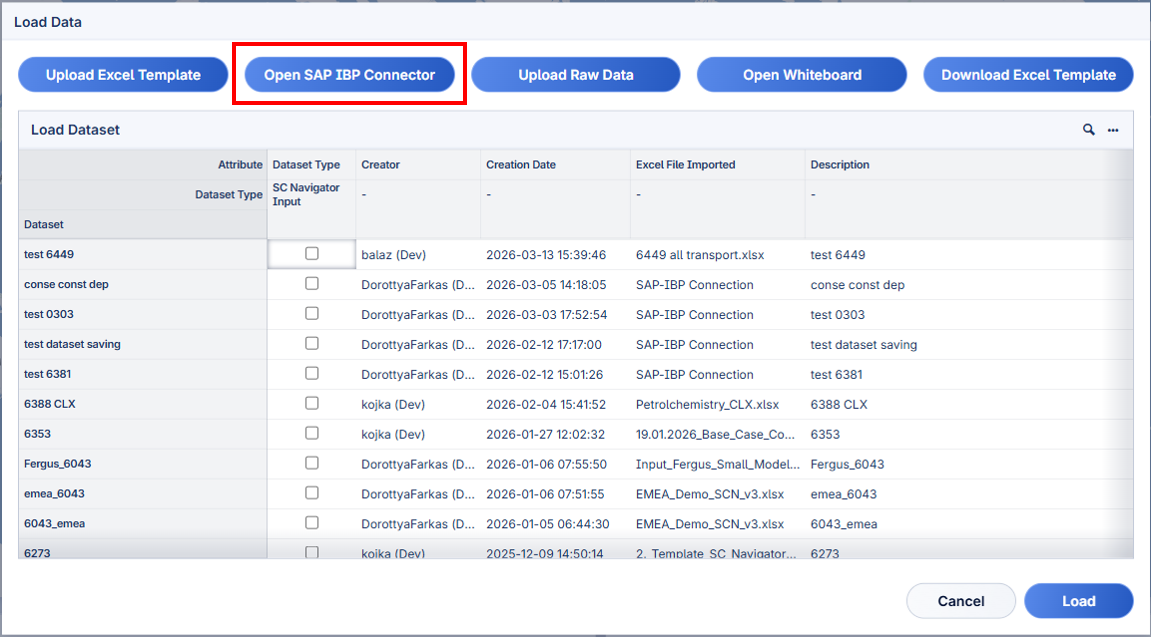
The SAP-IBP Connector can be activated by clicking the Open SAP IBP Connector button on the Load Data dialog page.
The SAP-IBP Connector module allows users to retrieve data directly from SAP Integrated Business Planning (IBP) and prepare it for use in SC Navigator. This consists of defining a mapping between the SAP-IBP data and the SC Navigator data model, as well as configuring additional settings related to data retrieval.
The first step in the process is to define the mapping between attributes in SC Navigator and columns in the SAP-IBP data. This involves selecting the relevant SC Navigator attributes and linking them to the appropriate columns in the SAP-IBP data. The mapping can be built on the SAP-IBP Setup page, which provides a user-friendly way to establish these connections.
There are two types of data that can be retrieved from SAP-IBP: Master Data and Planning Data. The mapping can be defined for both types of data. Master Data typically contains static information such as suppliers, products, or locations, while Planning Data contains time-dependent values such as demand, supply, or inventory. Once you have selected a column in the Master Data, upon reading the SAP-IBP data, the complete table will be loaded. The “Active” attribute is a critical attribute in SC Navigator. However, such an element does not really exist in SAP-IBP. Therefore, every master data table has a (virtual) column “Available (Virtual)” that can be mapped to the “Active” attribute in SC Navigator.
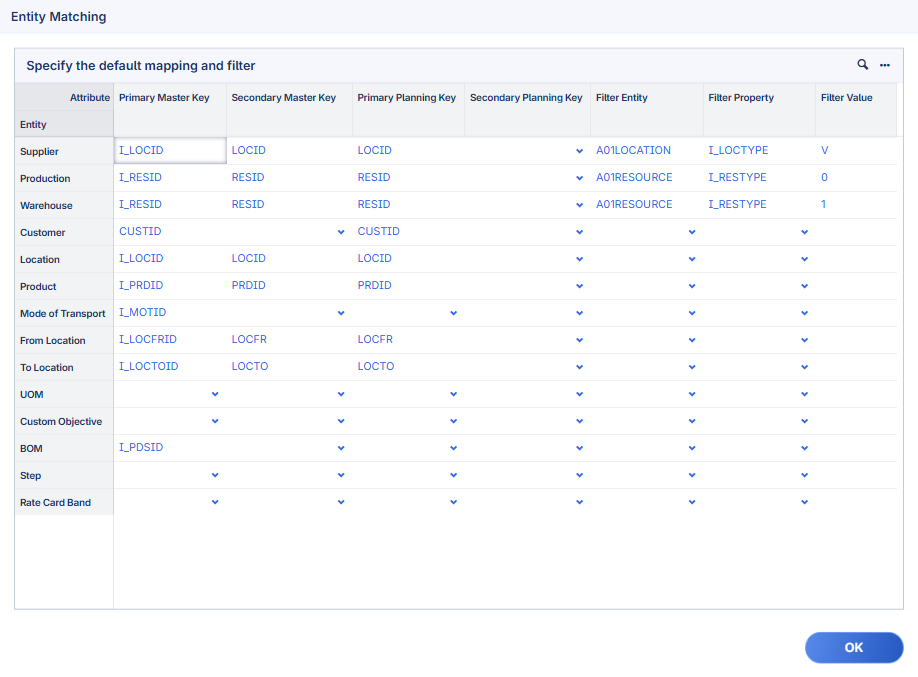
At the same time, the entities must be mapped as well to the correct columns in the SAP-IBP data, to make sure that the data is correctly linked to the right entities in SC Navigator. This is done through the Entity Settings dialog, where you can specify a primary and secondary key for both planning and master data. This also includes the option to filter which elements should be included.
The last piece of information that needs to be provided is how the data should be retrieved. This includes defining the time granularity, start and end time for the data retrieval of the planning data, and version/scenario name. Time granularity and version name are required fields, while start and end time are optional. If no start/end time is provided, all available data will be retrieved.
Note
The available version and scenario names are retrieved from SAP-IBP based on the mapping for attribute “Demand” in table/sheet “Customer Product”. So, make sure this attribute is mapped to a column in the planning data before that information can be set.
After the data is retrieved, the application automatically redirects to the Attribute Visual page for further processing, see Raw Data for the next steps.