Raw Data
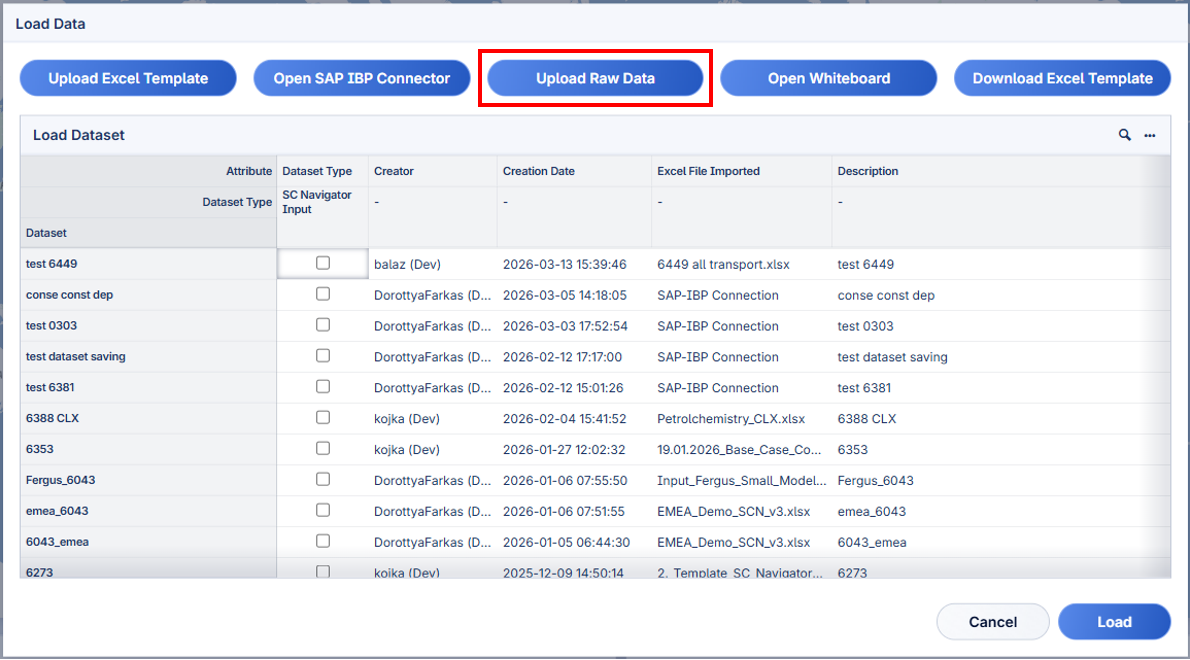
Raw data can be uploaded by clicking the Upload Raw Data button on the Load Data dialog page.
After the data is loaded, the application is redirected to the Sheet Type page.
Mapping the data is a crucial step in preparing the data for use in SC Navigator, whether it is retrieved from SAP-IBP or uploaded as raw data. There are three main steps in the mapping process:
Mapping the data type to the corresponding file/sheet. (Sheet Type)
Mapping the attributes and entities to the columns in the file/sheet. (Attribute Visual and Attribute Table)
Mapping one column to another to indicate group relationships. (Group Visual and Group Table)
Mapping the attributes and entities to the columns in the file/sheet is the most crucial step, as it directly impacts how the data is interpreted and used in SC Navigator. This step in completed in the diagram on page Attribute Visual, but the same mapping can also be done on the Attribute Table page if preferred.
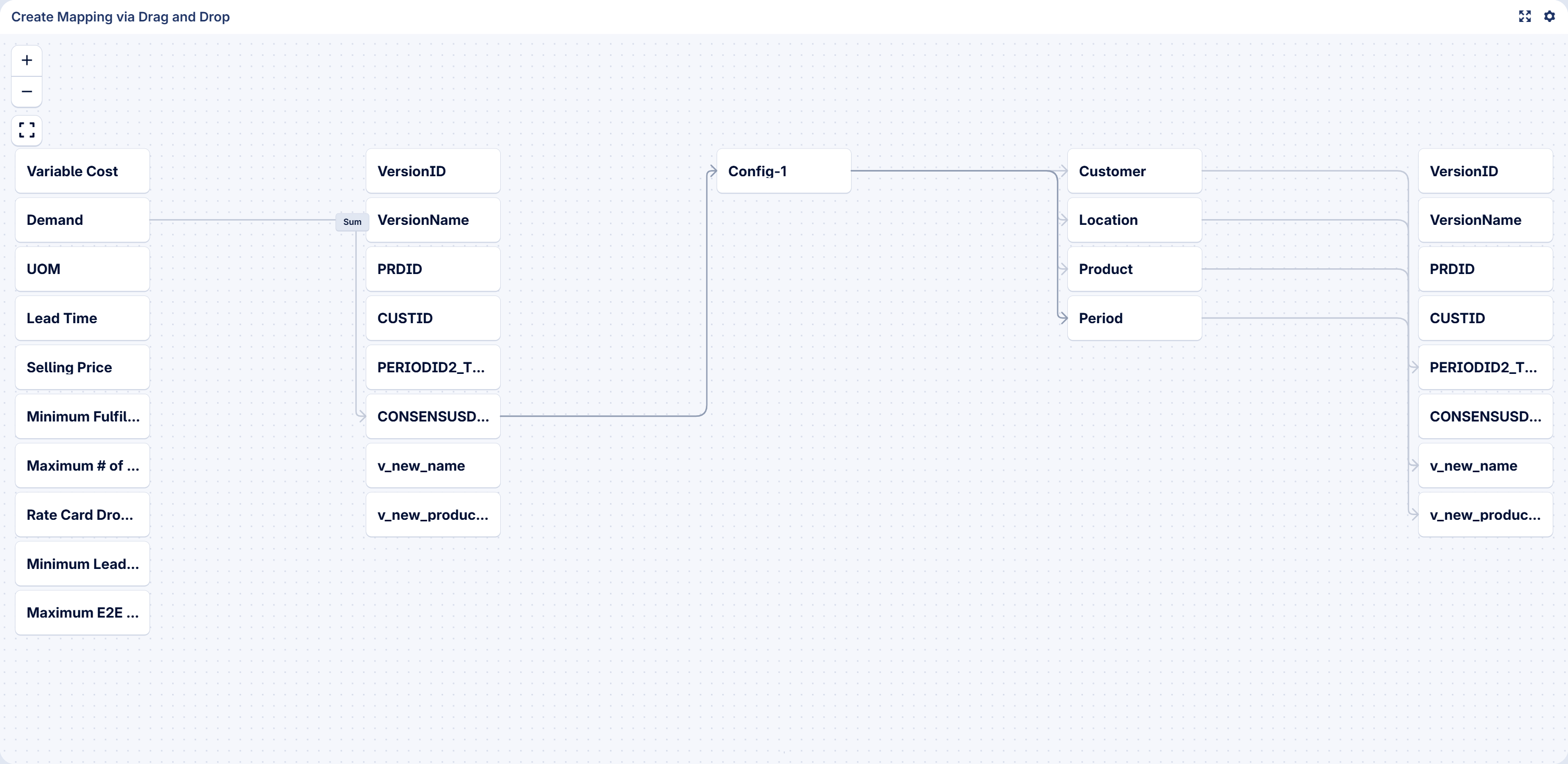
In this diagram, the data is arranged in five columns.
The SC Navigator attributes for the selected data type.
The columns in the selected file/sheet.
Entity Configuration. (For now, this is always one element.)
The entities needed for the selected data type.
The columns in the selected file/sheet.
The elements in each of the columns can be mapped to the elements in the next column, by drawing a line between them. In the example above, the SC Navigator attribute “Demand” is mapped to the column “CONSENSUS DEMAND” in the file/sheet, and the entity “Product” is mapped to the column “v_new_product_name”. This indicates that the column “CONSENSUS DEMAND” contains data about the SC Navigator attribute “Demand”.