Attribute Visual
This page displays the current mapping between SC Navigator attributes and the input data, and allows further refinement if the mapping is incomplete.
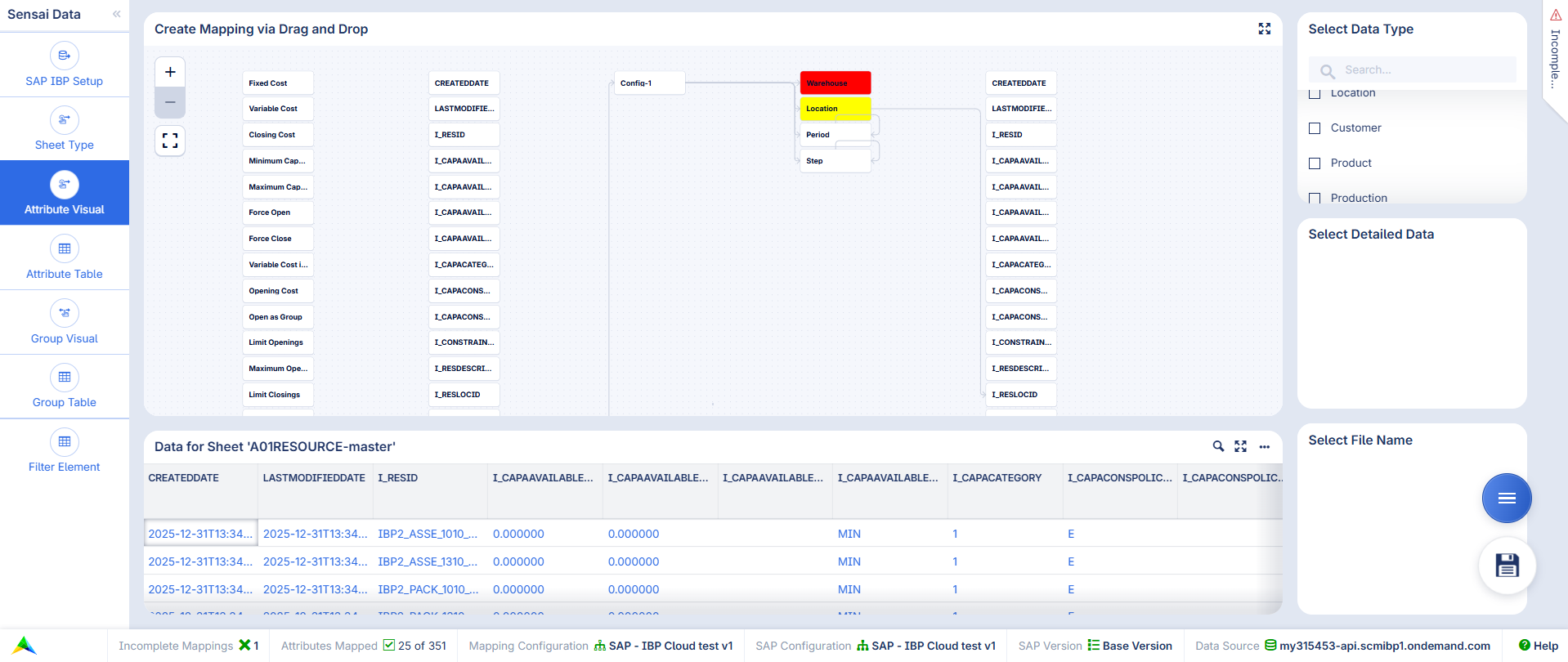
On the right-hand side of the page, the Select Data Type, Select Detailed Data, and Select File Name widgets are used to select the SC Navigator template sheet for which the data will be provided.
The Create Mapping via Drag and Drop widget displays the current mapping for the selected table. The mapping can be modified by removing existing arcs and drawing new ones.
Arc Actions
The right-click menu of the drawn arcs provides the following options:
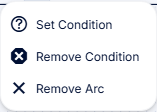
Remove Arc: Removes the selected arc.
Set Condition: Defines a condition so that the attribute mapping is only applied to rows that satisfy the specified condition.
Two types of conditions are available:
Condition on Column and Value: Filters rows based on a specific value in a selected column. Only rows where the column matches the specified value are included in the mapping.
Regular Expression: Filters rows using a regular expression. This allows defining more advanced conditions, such as matching values with a specific prefix, suffix, or pattern.
If a condition is already defined, it can be reopened and modified using the same option.
Remove Condition: Removes the defined condition.
Additional Configuration Options
The following options can be used to further configure the mapping and extend it with additional functionality:
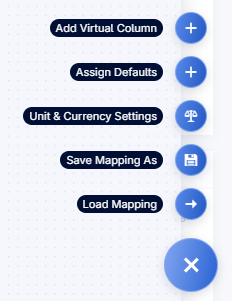
Add Virtual Column: Virtual columns can be used to create additional data that is not available in the original input.
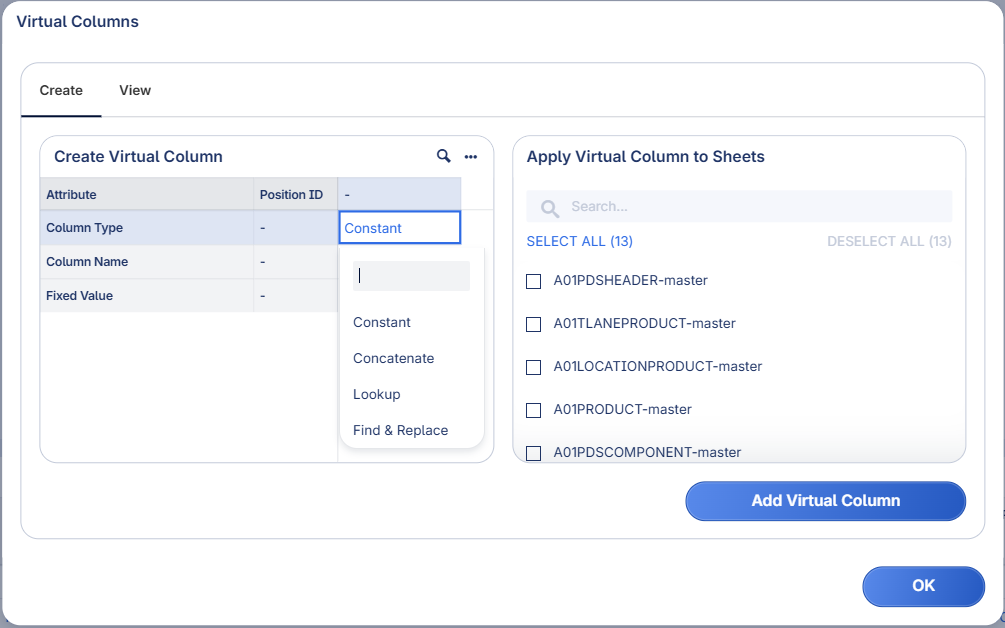
The Virtual Columns dialog allows defining new columns for a selected sheet. The target sheet can be selected on the right-hand side, while the column definition can be configured on the left.
The following types of virtual columns are available:
Constant: Creates a column where all rows contain the same fixed value. The column name and the constant value must be specified.
Concatenate: Creates a column by concatenating values from multiple columns. The column name, the number of columns, the separator, and the source columns must be specified.
Lookup: Creates a column by retrieving values from another sheet based on a matching value. The Lookup Value specifies the column in the current sheet. The Lookup Sheet defines the sheet where the matching is performed. The Matching Value specifies the column in the lookup sheet where the value is searched. The Select Column defines which column value from the lookup sheet is returned.
Find & Replace: Creates a column by modifying values from an existing column using a search-and-replace pattern. The Source column is searched for a given pattern (Source Pattern), and matching parts are replaced with the specified Replacement Pattern.
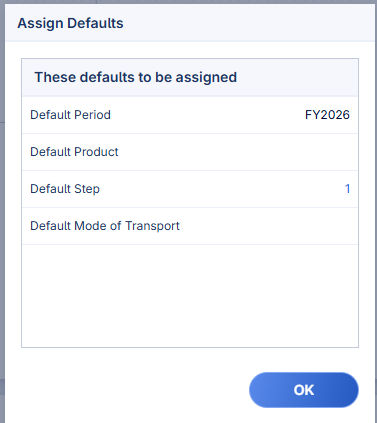
Assign Defaults: Default values for period, product, step, and mode of transport can be configured.
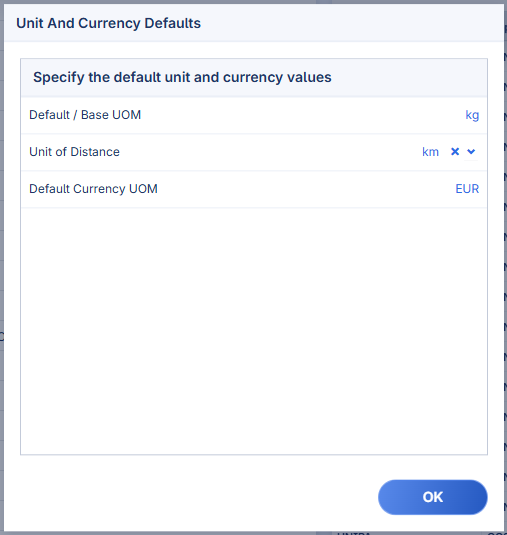
Unit & Currency Settings: Default/Base UOM, Unit of Distance, and Default Currency UOM can be configured.
Save Mapping As: The mapping can be saved.
Load Mapping: An already saved mapping can be loaded again.
The primary page action button opens a dialog where the input data can be:
downloaded as an SC Navigator template via the Create Excel File button, or
saved as a dataset via the Save button.

Incomplete Mapping
After a Raw Data Upload, all of the mappings need to be done, while a retrieval of SAP-IBP already contains some parts of the mapping.
The Incomplete Mapping side panel becomes available, on page Attribute Visual and Attribute Table, if the mapping for an attribute is incomplete. This happens when an attribute is mapped to a column in the data file, but the entity is not properly mapped. There are two scenarios here, an entity is either not mapped or mapped to an empty column. The empty column message does not consider filtering conditions, so a warning is displayed if the column is empty, even if the filters would exclude those rows with empty values anyway.
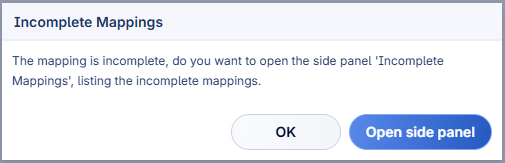
If an attempt is made to save the input data while the mapping is incomplete, a message is displayed indicating the issue:
The Incomplete Mapping side panel lists the tables with incomplete mappings.
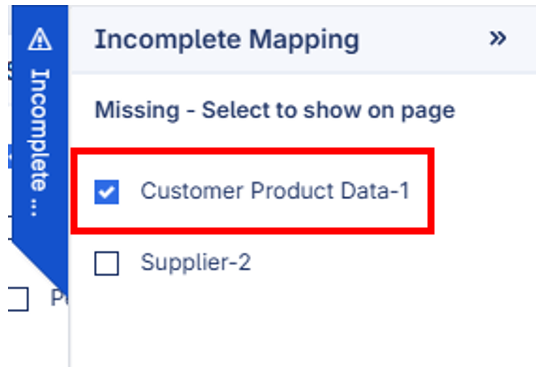
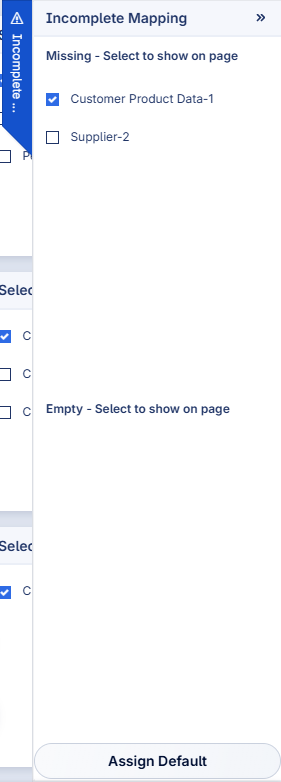
By selecting the checkbox of a table, the view is updated to display the corresponding configuration using the Select Data Type, Select Detailed Data, and Select File Name widgets.
This allows the selected table to be viewed and corrected in the Drag and Drop or Table view, depending on whether the Attribute Visual or Attribute Table page is active.
When the current mapping is displayed, it can be modified by removing existing arcs and drawing new ones. Arcs can be deleted via a right-click action.
If an entity is highlighted in yellow, the column it is mapped to is empty. If an entity is highlighted in red, it is not mapped.
Period, product, step, and mode of transport can be mapped to default values. The default values can be configured via the Assign Defaults secondary page action, which opens the following dialog page:
At the bottom of the Incomplete Mapping side panel, the Assign Defaults button is available.
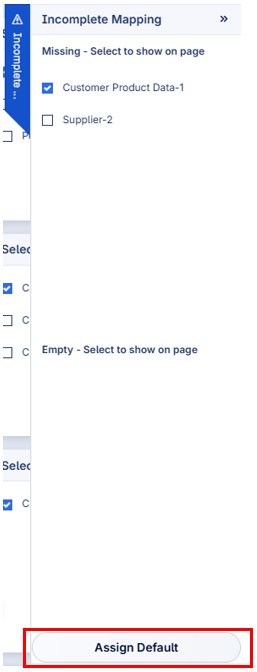
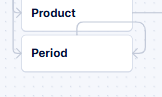
Clicking this button assigns the default values defined in the dialog shown above to those entities (period, product, step, and mode of transport) that are not mapped in the current table. In the Drag and Drop view, this is represented by a loop arc.