Work with Your Data
With SENSAI Pro, you can look up and change your input data, and add new entities to your network, by describing what you want in the chat. This page describes each of these capabilities, with example requests. Replace the names in the examples with the names in your own dataset.
To switch to another input dataset, ask for example “Load the input dataset EMEA Demo.” To run the optimization and analyze the results, see Optimize and Analyze.
Look Up Data
Ask SENSAI Pro about your input data instead of searching through the data pages. It can also combine data, for example by adding up values across a location group, a product or a period, and point out what stands out.
Find data
“What does Antalya_FG supply, at what cost and with what capacity?”
“Which warehouses are in Italy?”
“Which transport lanes go from Madrid_LDC to customers?”
Analyze data
“What is the total maximum capacity of the RM supplier group per period, and which suppliers in that group have no capacity?”
“Which 10 customers have the highest total demand, and what share of total demand do they represent together?”
“Break down total demand by product and period, and show how much it grows from 2023-H1 to 2023-H2.”
These answers are based on your input data. For questions about optimization results, see Compare Results.
Edit Input Data
SENSAI Pro can change the input data of warehouses, suppliers, production facilities, customers, transport lanes, Bills of Material and locations. You can set exact values, or change values by a percentage or a fixed amount.
Set exact values
“Set the minimum capacity of Antalya_FG to 100000.”
“Increase the maximum capacity of Krems_FG to 4 million in 2023-H2 only.”
“Give Venlo_RM a fixed cost of 50000 per period and an opening cost of 250000.”
“Krems_FG needs 3 weeks lead time on Thin-Film.”
Change values by a percentage or amount
“Increase the demand of all customers in Germany by 10%.”
“Increase the transport cost per distance by 5% for all lanes in 2023-H2.”
“Add a 5% surcharge on all products from Krems_FG.”
“Cut the maximum capacity of Perugia_RM by 20%.”
Open, close and disable
“Force Krems_FG open in both periods.”
“Close Lyon_LDC in 2023-H2.”
“Disable the Secondary Delivery LTL lane from Copenhagen_LDC to Aarhus.”
SENSAI Pro follows these rules when it interprets a request:
If you name a product, SENSAI Pro changes the product-level data, for example the capacity of one product at a warehouse. Otherwise it changes the data of the facility as a whole.
SENSAI Pro changes inventory capacity only when you say “inventory”. Otherwise it changes throughput capacity.
A transport lane is a combination of mode of transport, origin and destination. If you do not name a mode, the change applies to every mode between those locations.
If you ask to change “transport cost” without saying which kind, SENSAI Pro changes the cost type that is filled in for those lanes, such as cost per UOM, per distance or per trip. It asks you only when several cost types are filled in.
To disable a lane, SENSAI Pro force-closes it rather than setting its capacity to zero, so the lane and its data are kept.
You can undo data edits. See Review and Undo Changes.
Create New Entities
SENSAI Pro can add new locations, warehouses, suppliers, production facilities, Bills of Material and transport lanes to your network.
There are two ways to create a warehouse, supplier or production facility:
- Copy an existing one
Use wording such as “like”, “a copy of” or “same capacity and cost as”. SENSAI Pro copies everything from the existing entity, including products, capacities, costs, force open and close settings, and transport lanes. For a production facility, this includes the Bills of Material it runs.
- Create a new one
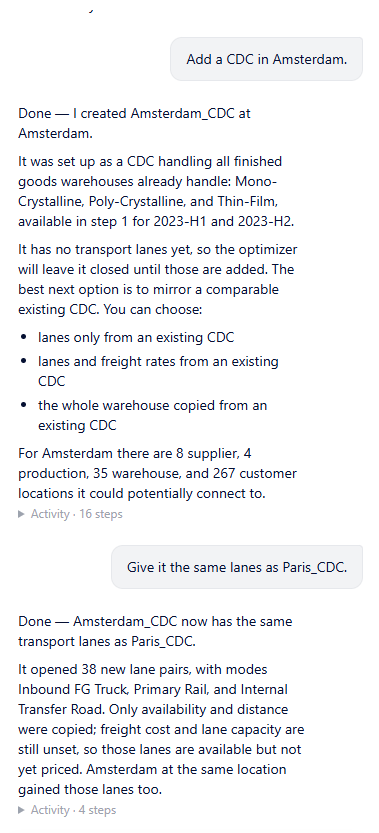
Describe the new entity, and optionally which products it handles and which lanes it should get. To give it the same lanes as an existing entity without copying its capacity and costs, say “with the same lanes as”. This copies which lanes exist and their distances, but not their cost and capacity. To copy those as well, say “with the same lanes, costs and capacities as”. You can also select lanes by role, country or location, for example “receiving from all suppliers in Poland and shipping to customers in Germany”.
Example requests include:
“Add a CDC in Amsterdam.”
“Create a warehouse in Turin with the same lanes as Lyon_LDC.”
“Create a supplier like Krems_FG but in Milan.”
“Create supplier Sevilla_RM at Madrid_LDC, supplying All Raw Materials, shipping to L’Arbresle_PROD and St. Wendel_PROD.”
“Open a Thin-Film factory in Turkey.”
“Copy the data of Perugia_RM into Sevilla_RM.”
When you name a place, SENSAI Pro first looks for a matching location in your data, including spelling variants and names with a suffix, such as Amsterdam_CDC. It prefers a location that already has a facility of the requested type, then one with another facility type, and then a location without a facility, such as a customer location. It tells you which location it chose. It creates a new location only when nothing in your data matches.
If you do not say which lanes a new entity should get, SENSAI Pro creates it without lanes and suggests ways to add them. Until it has lanes, the optimizer cannot use the new entity.
Important
Creating new entities and copying data cannot be undone. See Review and Undo Changes.
Note
A new transport lane has no cost until you set it or copy it. If SENSAI Pro creates lanes without cost data, it tells you, because the optimizer could otherwise use those lanes for free. Ask SENSAI Pro to set the cost, or to copy the lane costs and capacities from a comparable entity.